Help centre › Getting started
Put THNGS in your share sheet
Pin THNGS to the front of the share sheet on iPhone and iPad, once.
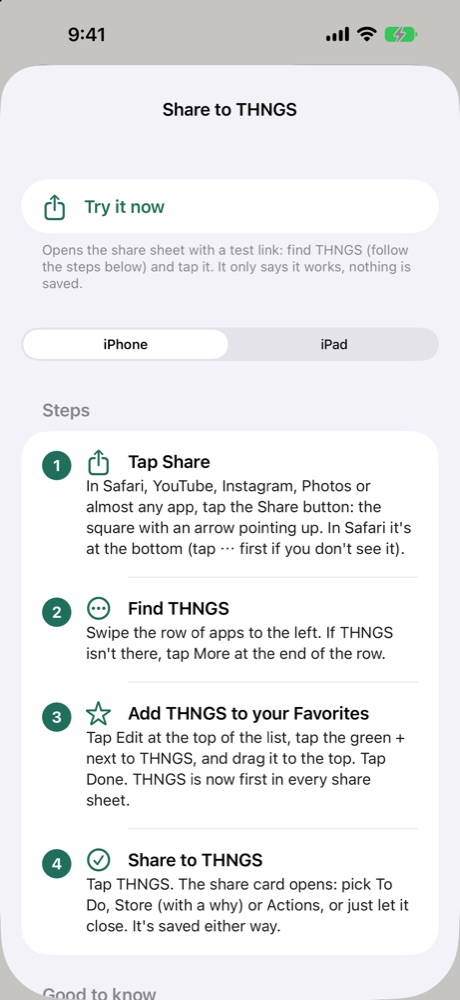
Once THNGS is installed it's in every app's share sheet, but often at the end of the row. Pin it once and saving anything is two taps. iPhone and iPad don't let an app do this for you.
Easiest: in THNGS go to Settings › Share to THNGS › Try it now. The share sheet opens with a test link so you can find THNGS, pin it and try it right there. Nothing is saved.
On iPhone
- Tap Share. In Safari, YouTube, Instagram, Photos or almost any app, tap the Share button: the square with an arrow pointing up. In Safari it's at the bottom (tap ⋯ first if you don't see it).
- Find THNGS. Swipe the row of apps to the left. If THNGS isn't there, tap More at the end of the row.
- Add THNGS to your Favorites. Tap Edit at the top of the list, tap the green + next to THNGS, and drag it to the top. Tap Done. THNGS is now first in every share sheet.
- Share to THNGS. Tap THNGS. The share card opens: pick To Do, Store (with a why) or Actions, or just let it close. It's saved either way.
On iPad
- Tap Share. In Safari the Share button is at the top right, next to the address bar (or under ⋯). In other apps look for the square with an arrow pointing up. The share sheet opens as a small window next to the button.
- Find THNGS. Swipe the row of apps to the left. If THNGS isn't there, tap More at the end of the row.
- Add THNGS to your Favorites. Tap Edit at the top of the list, tap the green + next to THNGS, and drag it to the top. Tap Done. THNGS is now first in every share sheet.
- Share to THNGS. Tap THNGS. The share card opens: pick To Do, Store (with a why) or Actions, or just let it close. It's saved either way.
Good to know
- Photos and screenshots: select up to 10 in Photos, tap Share, then THNGS.
- Text: select it, tap Share in the menu, then THNGS.
- Not in the list at all? Open THNGS once after installing, then try again.